The OpenFIT Data Warehouse gives your analytics team direct, read-only SQL access to your organisation's OpenFIT data, so you can ingest it into your own data lake, warehouse or BI tool (Power BI, Tableau, Fabric, Databricks, Synapse and similar). This is the pattern we recommend — and the one we have implemented successfully with other organisations — where you want OpenFIT data alongside your other systems rather than only inside OpenFIT's own reports.
This article explains what the Data Warehouse contains, how access is provisioned, and how to make and test your first connection.
Before you start — data protection
The data in the Data Warehouse is anonymised. It is designed for executive, service-level and outcome reporting, where names and other directly identifying information are not needed.
Even so, we strongly recommend that you complete a Data Protection Impact Assessment (DPIA) before you begin ingesting OpenFIT data into your own environment, and that you confirm the intended use is covered by your existing lawful basis and data processing agreement with OpenFIT. We are happy to assist with the DPIA — contact support and we will provide the technical detail you need.
What you need
- A Data Warehouse account provisioned by OpenFIT for your organisation (see below).
- A SQL client. We recommend testing first with SQL Server Management Studio (SSMS), which is a free download from Microsoft. Azure Data Studio, Power BI Desktop and most ODBC/JDBC tools work equally well.
- Outbound network access on TCP port 1433 from the machine or service that will connect.
- The ability to complete multi-factor authentication — the Data Warehouse uses Microsoft Entra ID (formerly Azure AD) with MFA enforced. Anonymous or password-only connections are not permitted.
Requesting access
Access is granted per organisation and is not self-service. To request it, raise a ticket with OpenFIT Support including:
- Your organisation name.
- The name and email address of each person who needs access.
- A short description of the intended use (for example, "ingest into our Azure Data Lake for executive reporting").
- The public IP address or address range the connections will come from, if your organisation uses fixed egress addresses.
Once approved, we will send you the following connection details. Because they are specific to your organisation, they are provided directly to your named contacts and are not published here:
- Server URL — the fully qualified server name, in the form
<server-name>.database.windows.net - Database name — the database you should connect to
- Username — an Entra ID account created for your organisation
- Password — sent separately via a secure, single-use link
Please note: credentials are issued to named individuals. Do not share a single account across a team, and let us know promptly when someone who has access leaves your organisation so we can revoke it.
Connecting with SQL Server Management Studio
Step 1 — Log in
Open SSMS. In the Connect to Server dialog, on the Login tab, enter the following:
| Server type | Database Engine |
| Server name | The Server URL we provided, for example <server-name>.database.windows.net |
| Authentication | Microsoft Entra MFA |
| User name | The username we provided, for example <yourorg>analytics@openfit.care |
| Encryption | Mandatory |
| Trust server certificate | Leave unticked |
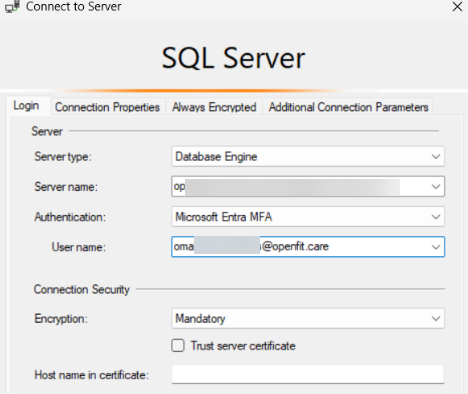
If Microsoft Entra MFA does not appear in the Authentication list, you are on an older build of SSMS — install the latest version from Microsoft and try again.
Step 2 — Choose the database
Click Options >> and open the Connection Properties tab. In Connect to database, type the database name we provided. Leave the network and timeout settings at their defaults.
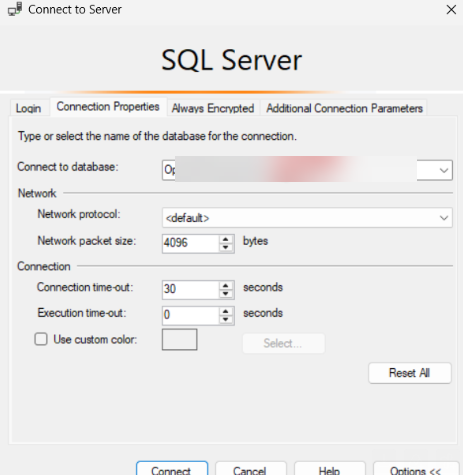
Setting the database explicitly matters: the account is scoped to your organisation's database only, so leaving this field at <default> can produce a login failure that looks like a bad password but is actually a permissions scope issue.
Step 3 — Connect and complete MFA
Click Connect. A Microsoft sign-in window opens. Sign in with the username provided and complete your multi-factor authentication challenge. Once authenticated, the database appears in Object Explorer and you can browse tables and views, and run queries.
Connecting from other tools
Any client that supports Azure SQL Database and Entra ID authentication will work. Use the same server, database and username, and select an Entra ID authentication method:
- Power BI Desktop — Get Data > SQL Server database, enter the server and database, then choose Microsoft account / organisational account when prompted for credentials.
- Azure Data Factory / Fabric / Synapse pipelines — use an Azure SQL Database linked service. For unattended ingestion, tell us and we will discuss the appropriate service-account or managed-identity arrangement rather than using an interactive MFA account.
- ODBC / JDBC — use the Microsoft driver with
Authentication=ActiveDirectoryInteractive,Encrypt=yesandTrustServerCertificate=no.
Scheduled or automated loads: an account with interactive MFA cannot be used for unattended refreshes. If you are building a scheduled pipeline, raise a ticket and we will provision the appropriate authentication method for that scenario.
Troubleshooting
| Symptom | What to check |
| Connection times out, or "network-related or instance-specific error" | Outbound TCP 1433 is blocked by your firewall or corporate network, or your public IP has not been allowlisted. Confirm 1433 is open, then contact support with the public IP you are connecting from. |
| "Login failed for user" after successfully completing MFA | The database name is missing or incorrect on the Connection Properties tab. Enter the exact database name we provided. |
| "Microsoft Entra MFA" is not in the Authentication list | Your SSMS version is out of date. Install the current release. |
| Sign-in window appears but the account is not recognised | Check the username is the OpenFIT-issued account, not your own corporate email address. |
| You can connect but a table or view is empty or missing | Access is read-only and scoped to your organisation's data. If you expect data that is not there, raise a ticket and describe the table and the period concerned. |
What is in the warehouse
For the tables, views and field definitions available to you, see the PowerBI Data Dictionary article in Reports & Statistics.
Need help?
Raise a ticket with OpenFIT Support. If the issue is a connection failure, include the exact error message, the tool you are using, and the public IP address you are connecting from — it usually lets us resolve it in one round trip.
Was this article helpful?
That’s Great!
Thank you for your feedback
Sorry! We couldn't be helpful
Thank you for your feedback
Feedback sent
We appreciate your effort and will try to fix the article